Step into the field
A workplace unfolds wherever you look.
Safety training begins with immersion.
 IMMERSIVE SAFETY TRAINING
Explore the solution
IMMERSIVE SAFETY TRAINING
Explore the solution
A familiar day. An unexpected moment.
The most vivid safety training begins
in the places we know best.
Loading video
Turn risks on a page into experiences before your eyes.
Face real-world situations in the safety of a classroom
and remember the critical moments.
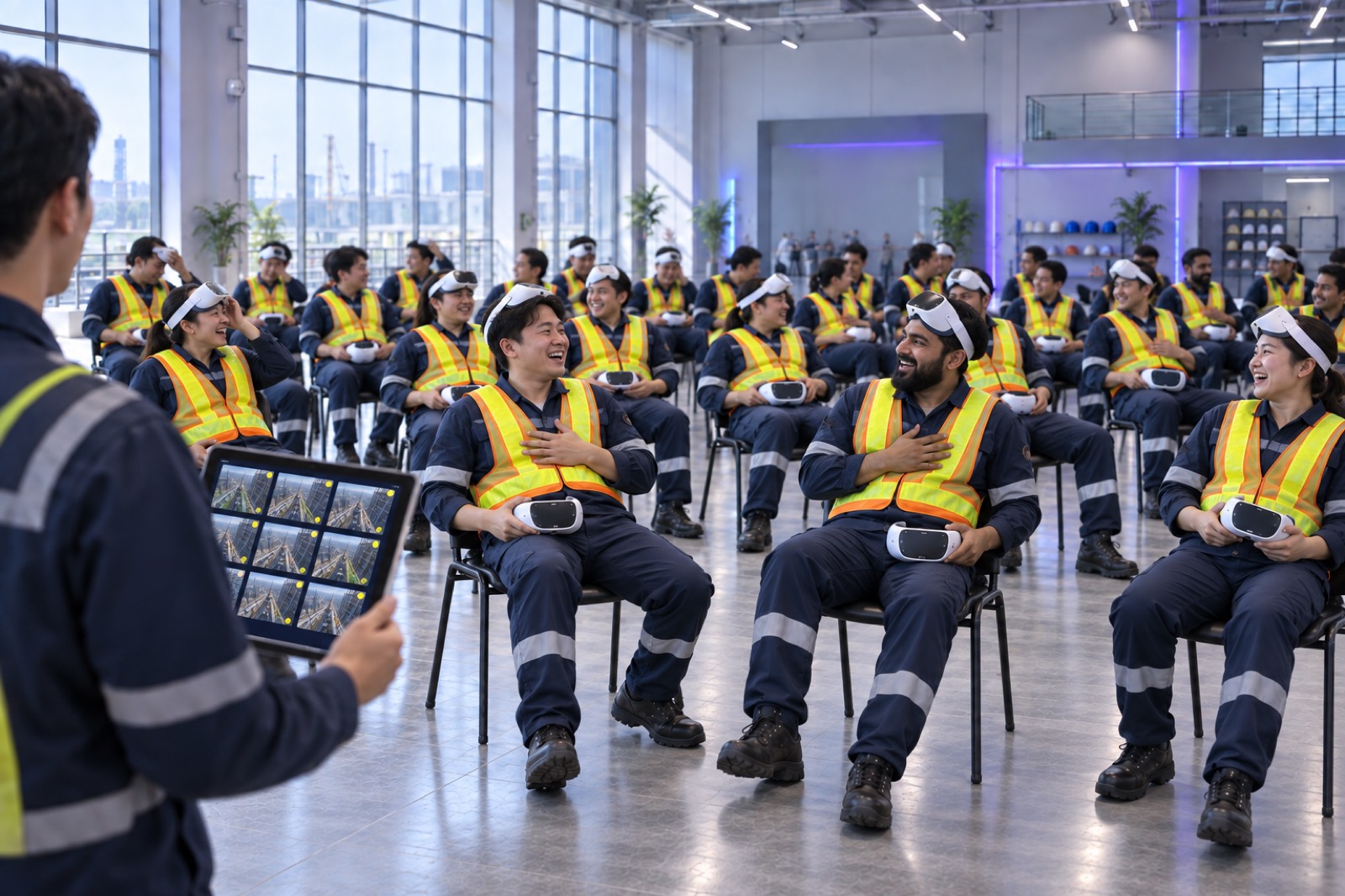
A workplace unfolds wherever you look.
Safety training begins with immersion.
Face moments that are hard to explain
in a safe virtual environment.
Talk with colleagues afterward
and rethink safety at work.
Take the headsets from the charging cabinet and start the class from your PC.
When training ends, shut them down together and return them to charge.
Make recurring classes simpler to run.
The 50-headset setup is an example. The system supports simultaneous training for up to 100 learners. This explainer animation combines official product imagery with an illustrated operations flow.
Training content and supported languages are preloaded. Choose what fits today's lesson without repeatedly adding or removing files.
Instructors can select a language on the PC, or learners can choose their language's flag before starting.
Power off the headsets together through CMS. Collect and recharge them for the next class.
A VR training system that plays educational content across multiple headsets through a PC and wireless access point.
Training control hub
Maximum simultaneous control
Use workplace photos in training
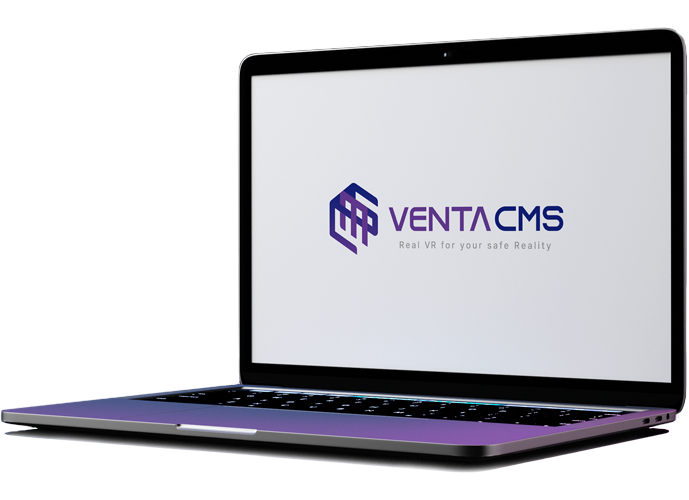 Operator PCChoose content · control playback
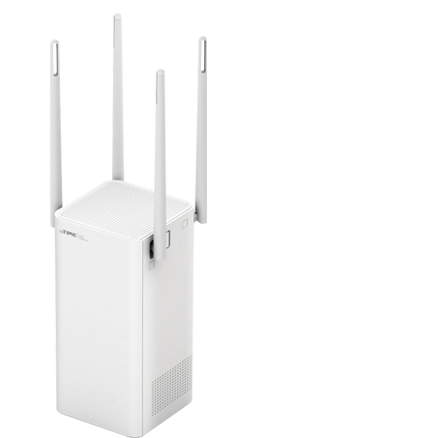 Access pointConnect PC and headsets on one network
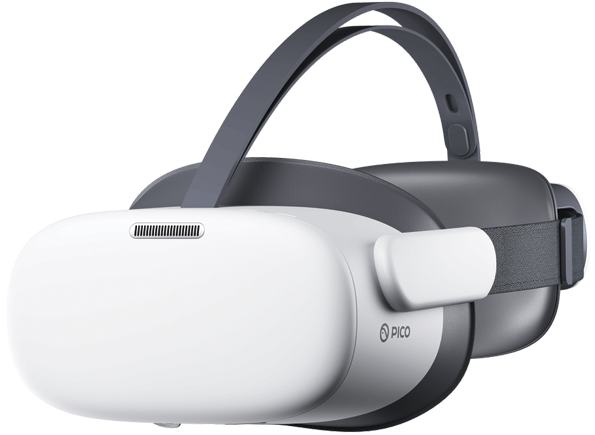 Learner headsetWatch the same lesson together
Training playback works without external internet access. An internet connection is required for license renewal and updates.
Turn on the PC, access point, and headsets.
 View larger ↗
Select today's lesson on the PC.
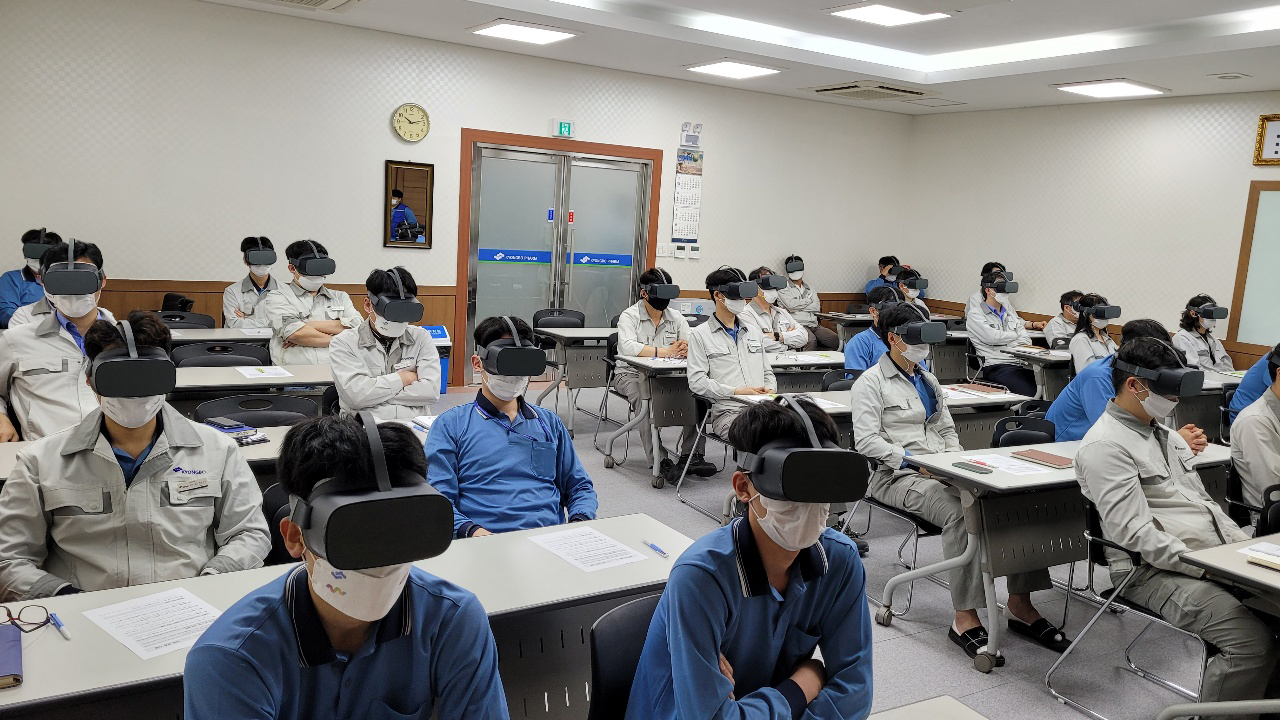
Learners watch simultaneously through their headsets.
For preparation, delivery, and follow-up.
Explore the tools for each stage.
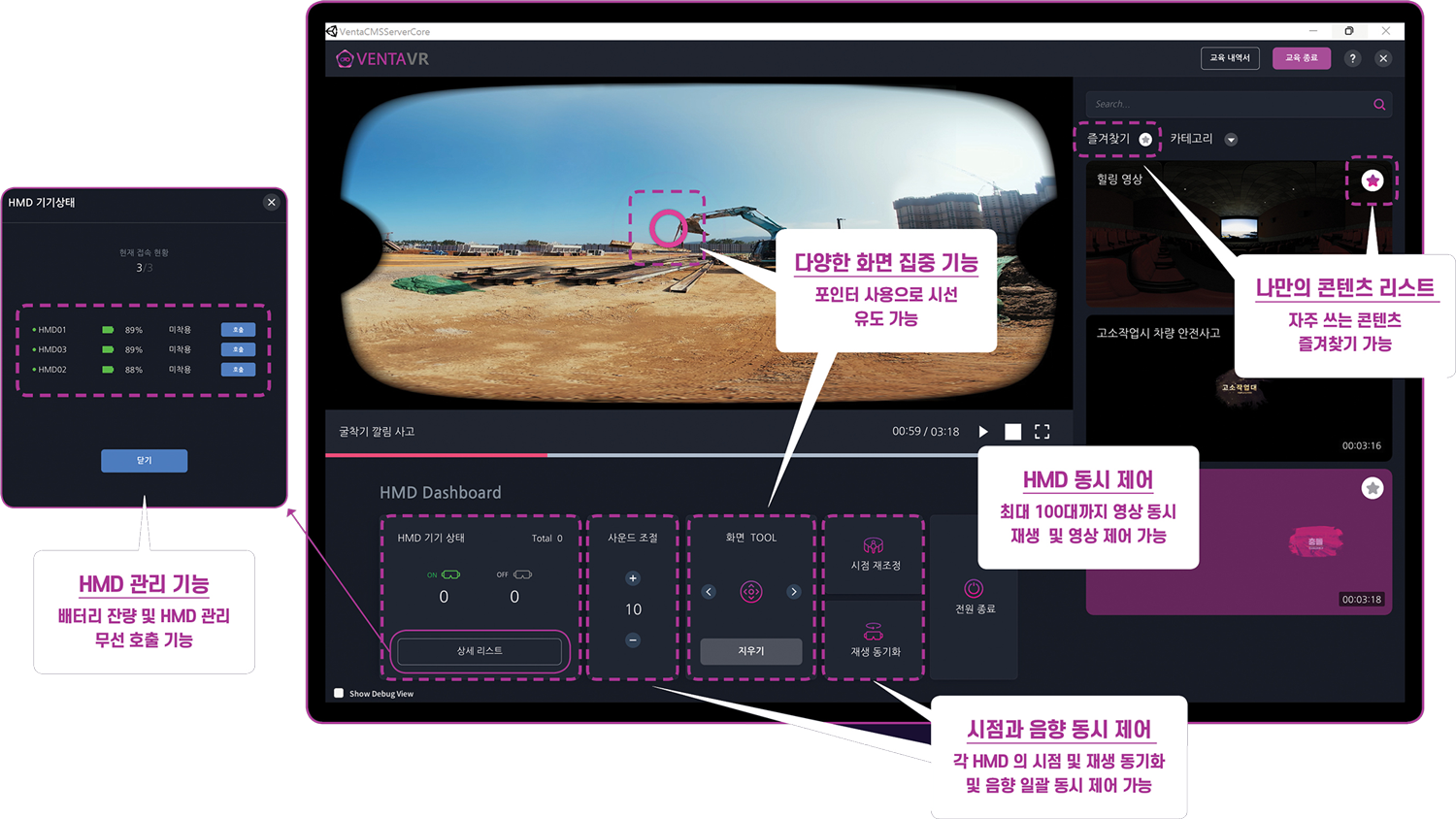
Control playback and volume together and check battery levels. At the end of class, shut down the headsets through CMS.
Headset status · playback control · content list — view larger ↗Use 360° photos you capture to examine hazards in your own work environment together.
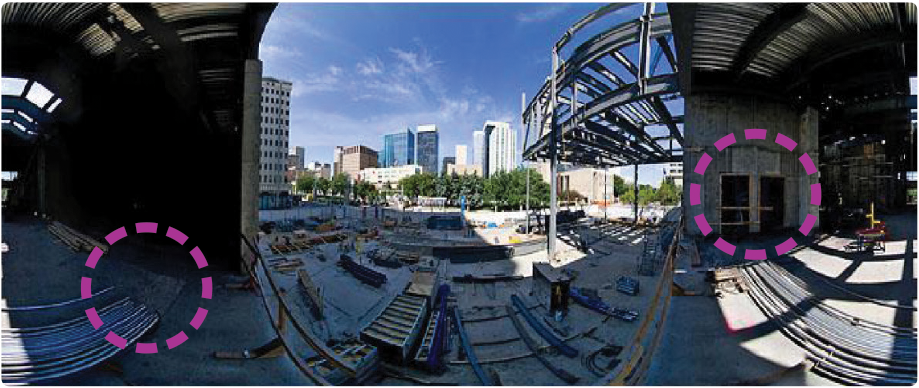 Explore workplace hazards together — view larger ↗
Manage session-by-session training information and statistics, then export results to Excel.
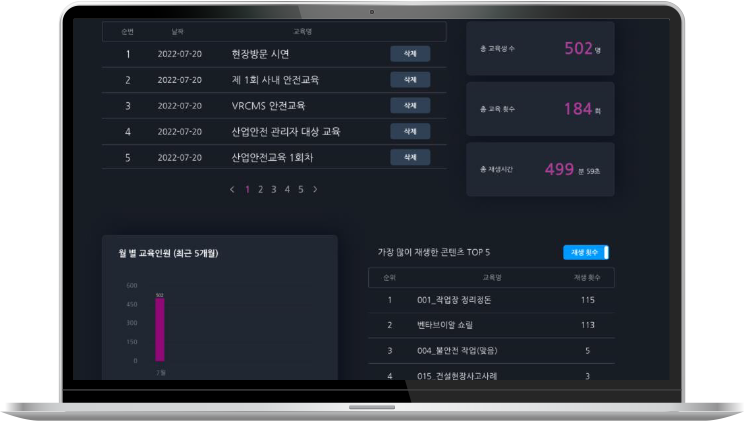 Review sessions and statistics — view larger ↗
Product screens are official reference images and may vary by supplied version.
Whether you're starting a new training room
or using equipment you already own.
The headset worn by each learner
Connects operator devices and headsets
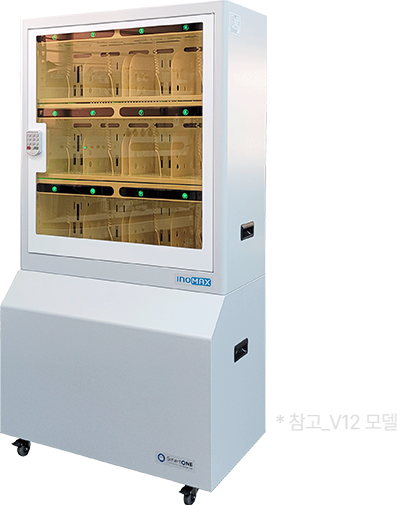
12-, 16-, or 20-headset options
Search and favorites, with Korean and English interfaces.
You may use an existing PC after checking its specifications. Ask us about device quantities and installation conditions.
Discuss your setup ↗Choose from 200 preloaded training experiences to suit today's site, task, and hazards.
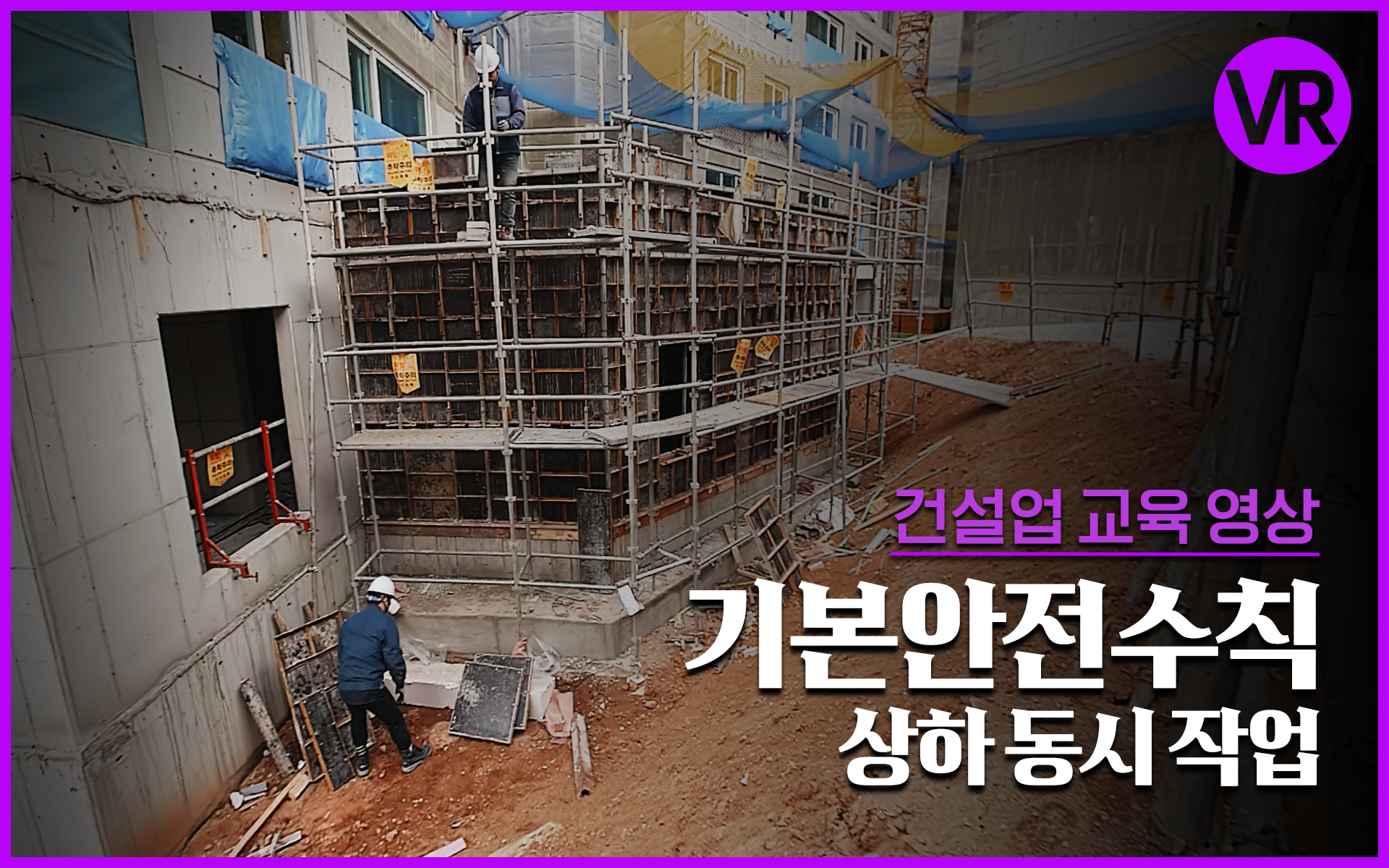 View scene ↗
Explore the hazards when people work at different heights at the same time.
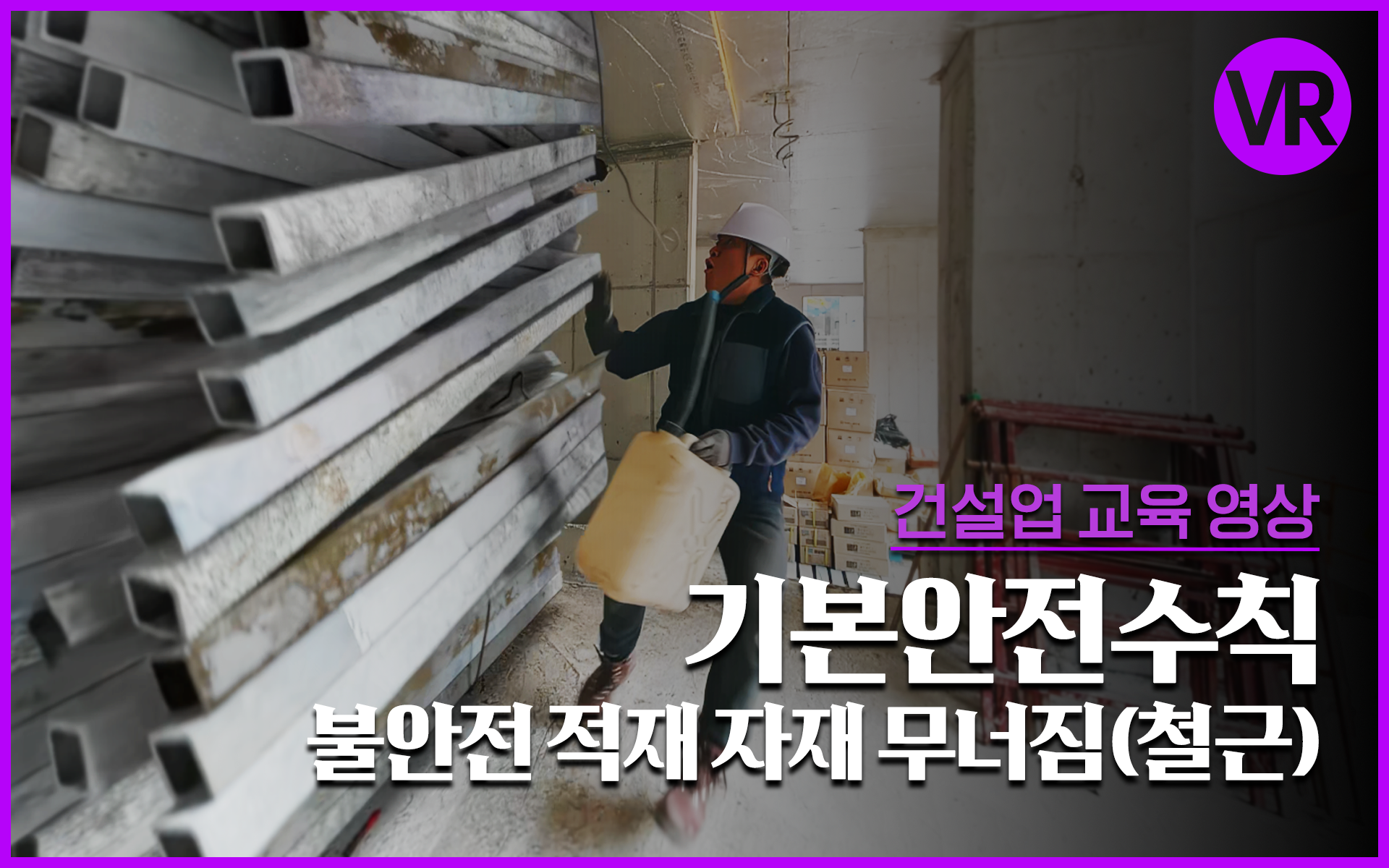 View scene ↗
Explore the hazards of storing stacked rebar and other materials.
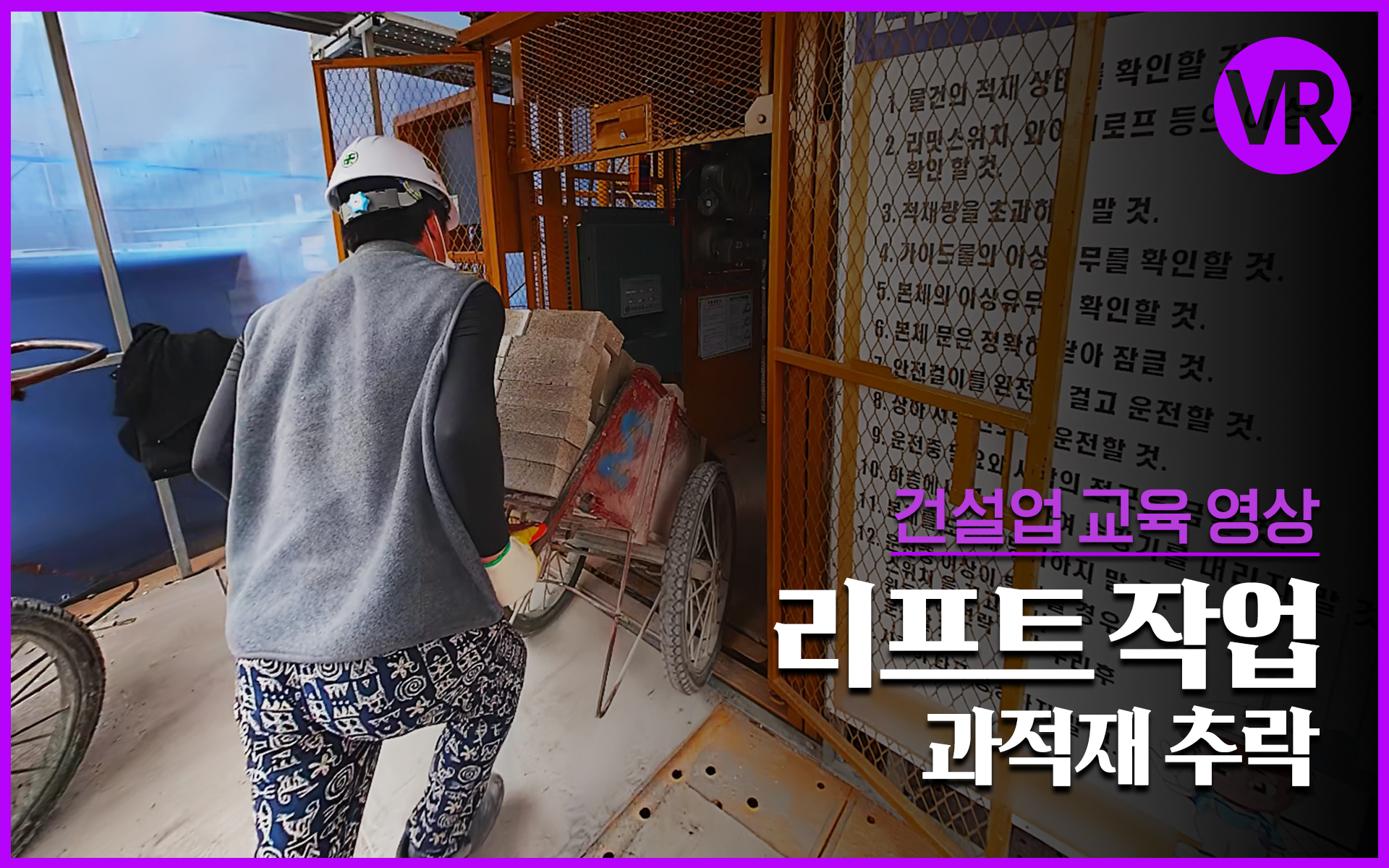 View scene ↗
Explore the hazards of transporting materials by lift.
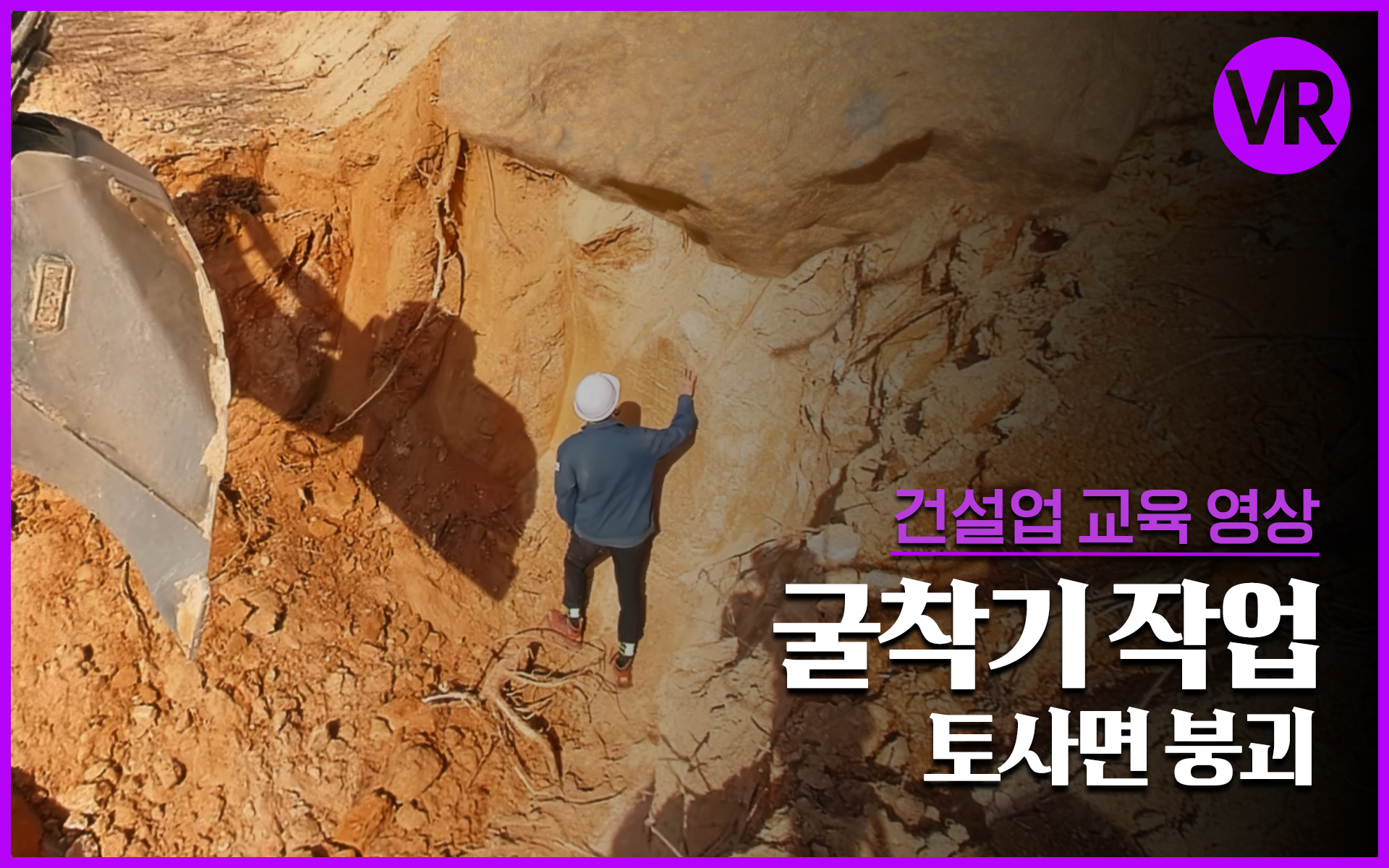 View scene ↗
Explore the hazards that can arise during excavation.
Representative images from official training content. Select an image to enlarge it.
Construction · manufacturing · other
Work at height · handling · welding
Scaffolding · forklifts · cranes
Falls · entrapment · electric shock · fire
Looking for a particular training scenario?
Ask about training content ↗BEYOND THE SCREEN
Beyond the scenes on screen is the space where training actually happens. Plan for your group size, seating, and equipment storage.
Discuss your workplace setup ↗No. There are 200 preloaded training experiences. Select the content you need in CMS instead of transferring files for each session.
The instructor can choose a language on the PC, or learners can select their language using a flag before the experience begins.
Playback is possible offline, but the license needs renewal. The official FAQ says an internet connection refreshes the available training count to 100 sessions.
A PC and charging cabinet are optional. You can purchase equipment separately; ask us to check compatibility.
Contact your representative to request them. Upgrades may incur additional costs.
Check the PC's connection to the training Wi-Fi and whether content has been distributed to the headset.
Official guidance states one year of free support after delivery, excluding damage caused by improper use.
Tell us your expected group size, venue, training frequency, existing equipment, and the work you want to cover.
Still working out the details?
Tell us about the training you have in mind.
MAKE SAFETY AN EXPERIENCE.

Virtual experience. Real-world safety.
VENTA CMS · SCROLL CINEMA